Send the order confirmation
- Open a confirmed order and click Send in the header, or Send order confirmation in the NEXT STEP card.
- Check the address in Send the order confirmation PDF to: (it starts with the customer email on the order) and confirm.
- The customer receives the sales-order PDF. If an advance is due and a payment gateway is connected, the email also has a pay-online button for the advance.
After the first send the step reads Send confirmation again. If the order has no customer email, the step reminds you to add one. You can also type an address when you send.
Switch on automatic customer updates
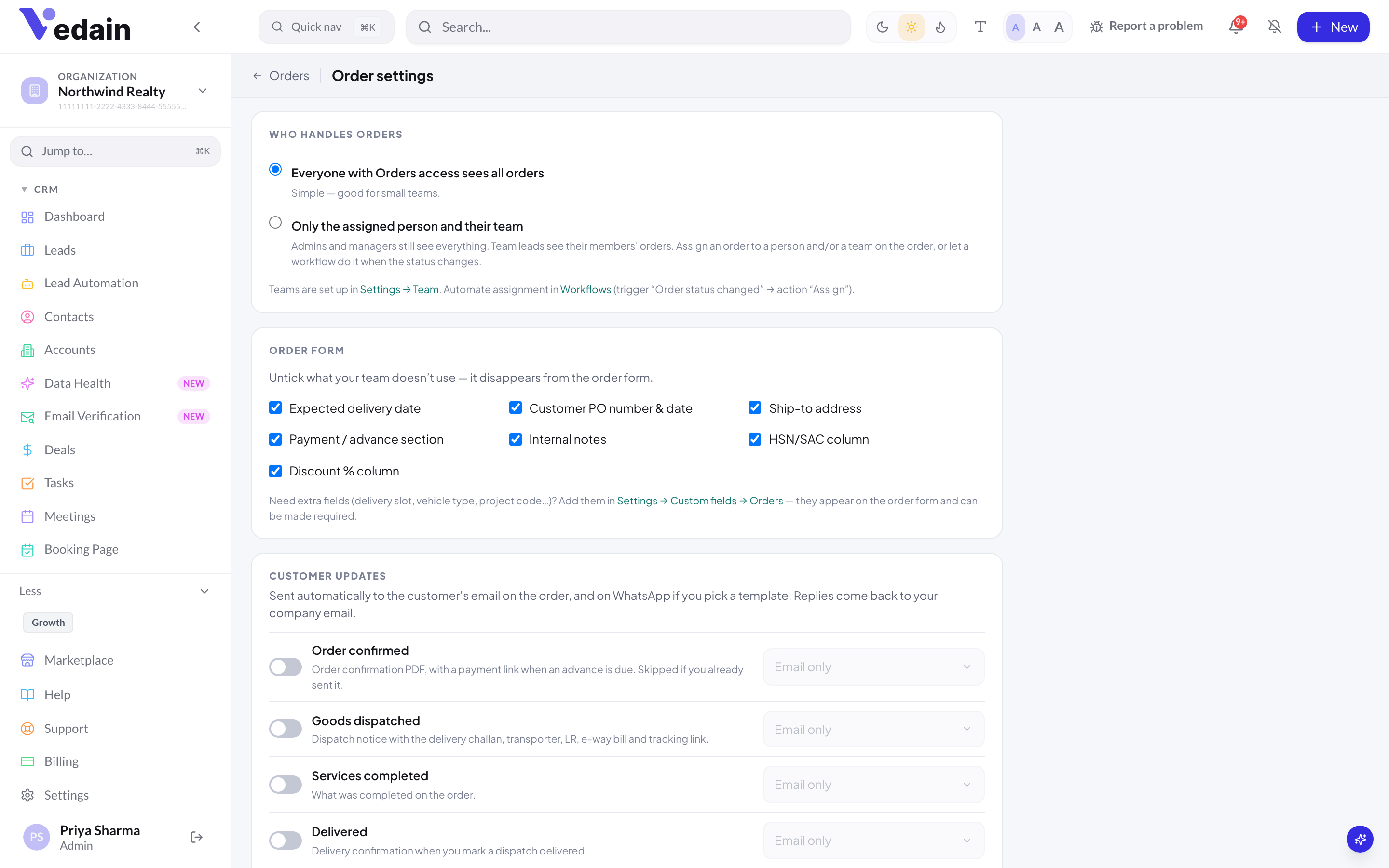
Vedain can email the customer at four points in the order. All four are off by default, so customers hear nothing automatically until an admin switches them on.
- Open Orders → Settings (or Settings → Orders & Inventory) and scroll to CUSTOMER UPDATES.
- Switch on the updates you want: Order confirmed (the confirmation PDF, with a payment link when an advance is due; skipped if you already sent it), Goods dispatched (the delivery challan, transporter, LR, e-way bill number and tracking link), Services completed (what was completed) and Delivered (sent when you mark a dispatch delivered).
- Click Save settings. Only admins can save.
Updates go to the customer email on the order. They are sent in the background after the action, so a slow mail server never holds up a dispatch. The result of each send is written to the order’s ACTIVITY log.
Who the emails come from
Order emails are sent by Vedain’s mail service, not from your own Gmail or Microsoft 365 mailbox. Replies go to your company email, because Reply-To is set to the email address in your company profile. Make sure that address is one your team reads.
Add WhatsApp to an update (optional, paid)
Each update can also go out on WhatsApp. You need WhatsApp Business set up in Vedain and an approved Utility template. Once you have one, each update in CUSTOMER UPDATES gets a picker: leave it on Email only or choose WhatsApp · your template. Without an approved Utility template, the card links you to WhatsApp templates to create one.
Templates can use four variables: {{1}} customer name, {{2}} order number, {{3}} details (the amount, the challan with transporter and tracking, or the delivery date) and {{4}} your company name.
WhatsApp is a usage-based extra. Each message uses one utility credit, and the credit is refunded if sending fails. WhatsApp pricing is ₹1,500 one-time registration plus ₹1,000 a month platform fee (includes 1 admin and 5 users, then ₹250 per extra user a month), plus Meta’s per-message rate: ₹0.14 for utility messages.
Collect payment with a payment link
First connect your own gateway in Settings → Payments: Razorpay, Stripe or PayPal. Links are created on your account with your keys, so the money goes straight to you and the gateway’s own fees apply. Vedain adds no fee to the link. Razorpay is used for INR orders and Stripe for other currencies by default; PayPal is used only if it is connected.
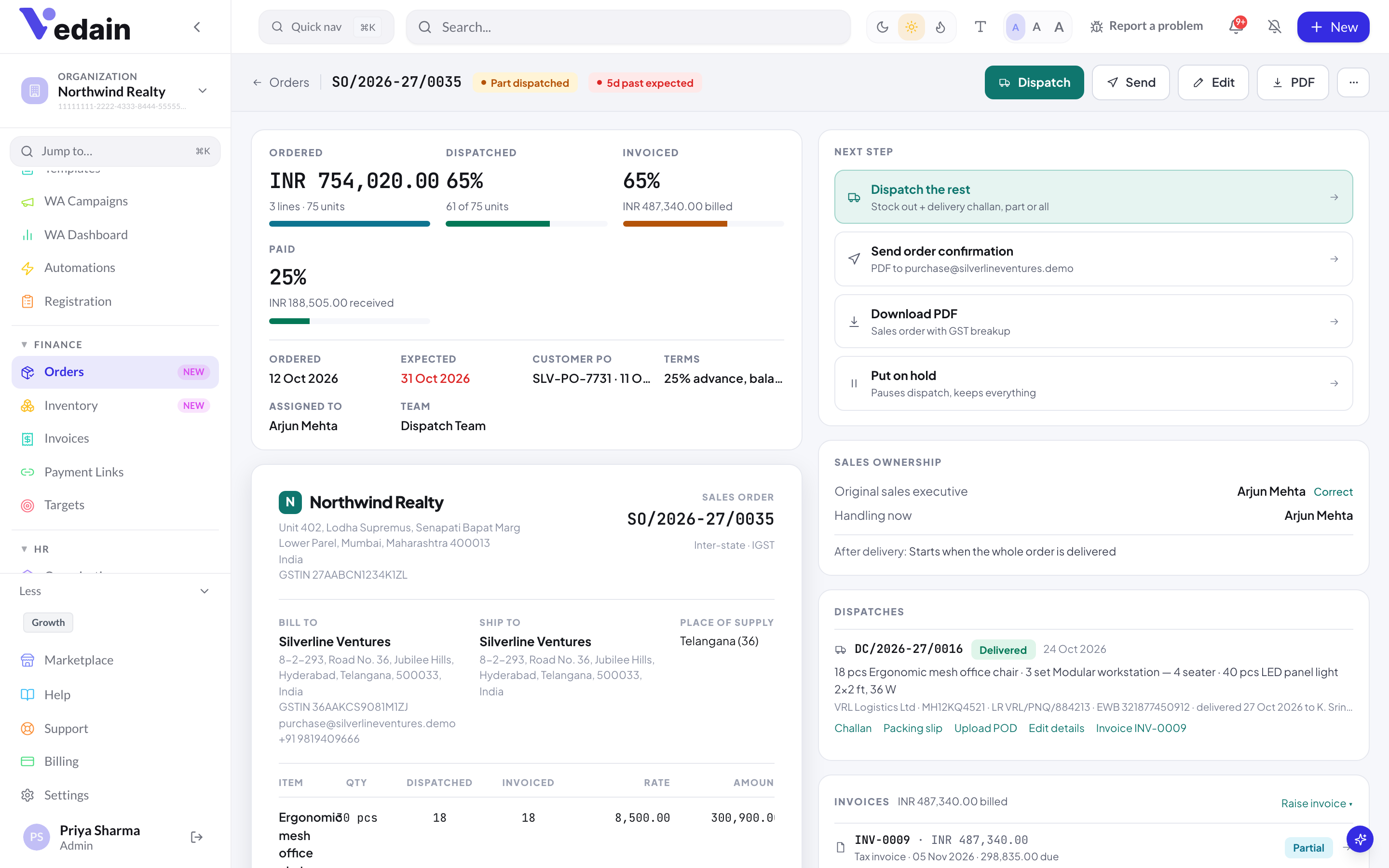
- Open a confirmed order and find the PAYMENTS card. It shows Received, Balance and Advance due.
- Click Payment link · amount. The amount is the advance due, or the balance if no advance is due. To ask for a different amount, type it in Other amount first. A link can’t be for more than the balance due.
- Click Copy on the new link and send it to the customer by email, WhatsApp or chat.
Order payment links also appear on the Payment Links page.
Check whether a link was paid
Payment links don’t update the order by themselves. Click Check on an open link and Vedain asks the gateway. You’ll see one of these:
- •Payment received — recorded on the order: the payment is added to Received, once.
- •Not paid yet: check again later.
- •This link has expired — create a new one.
- •This gateway can’t be checked — record the payment manually: PayPal links can’t be checked, so record PayPal payments by hand.
Record a payment by hand
- In the PAYMENTS card, click Record payment.
- Enter the amount and date, and pick the method: Bank transfer, UPI, Cash, Cheque, Card, Razorpay, Stripe, PayPal or Other.
- Optionally add a reference in UTR / cheque no. If the money settles an open payment link, pick it in Settles a payment link.
- Click Save payment.
A payment can’t be more than the balance due. Recorded payments are listed in the PAYMENTS card with their date, method and reference, and they are applied to the order’s tax invoice when you raise it. Remove a payment entered by mistake with its ✕, unless it has already been applied to an invoice.
Good to know
- •Payments can be taken only once the order is confirmed. Drafts show “Confirm the order to take payment.”
- •The order’s progress strip shows ORDERED, DISPATCHED, INVOICED and PAID at a glance.
- •The Order Payment Recorded workflow trigger fires when a payment is recorded, by hand or through Check.
- •Refunds aren’t processed through the gateway. A credit note records any refund due.
- •There is no customer portal or public tracking page. Customers get emails (when switched on), PDFs and payment links.
Frequently Asked Questions
Do customers get emails as soon as I install the module?
No. All four customer updates are off by default. Customers receive an email only when you click Send, or after an admin switches an update on in Order settings.
Do payment links mark the order paid automatically?
No. Someone clicks Check on the link and Vedain asks Razorpay or Stripe whether it was paid, then records the payment once. PayPal payments are recorded by hand.
Can a workflow email the customer on order events?
Yes. On an order trigger, a workflow’s Send Email and Send WhatsApp actions send to the customer email and phone on the order. For the four standard moments (confirmed, dispatched, completed, delivered), the built-in customer updates are simpler, because they already attach the right PDF and details. Send WhatsApp in a workflow uses a utility credit per message.
Collect advances on your own Razorpay or Stripe account, straight from the order.
Start a free 14-day trial of Vedain.
Start Free Trial