Before you start
- •Raising an invoice from an order needs edit access to Invoices as well as Orders. Sales Reps don’t have Invoices access by default.
- •Invoices open on the Invoices page. If Invoices isn’t in your sidebar, ask an admin to install the Invoices module from the Marketplace.
- •The order must be confirmed, part dispatched, fulfilled, closed or on hold. Drafts and cancelled orders can’t be invoiced.
Raise an invoice from the order
- Open the order. In the INVOICES card, click Raise invoice ▾. The same options are in the order’s ⋯ menu, and Invoice what’s dispatched also appears in the NEXT STEP card.
- Pick one: Invoice what’s dispatched (goods sent or work done that isn’t billed yet), Invoice everything left, Pro forma — full order, or Pro forma — advance only (shown when an advance is due).
- Vedain creates the invoice as a draft. Click it in the INVOICES card to open it on the Invoices page, review it, then send it.
To bill one dispatch at a time, click Invoice this on the dispatch in the DISPATCHES card. Afterwards the dispatch shows a link to its invoice.
Vedain blocks over-billing. Across all its tax invoices, a line can’t be billed for more than the quantity ordered. Pro formas don’t count as invoiced quantity, so a pro forma never stops you raising the tax invoice later.
How advances are applied
Money already received on the order, such as an advance paid through a payment link or recorded by hand, is applied to the order’s tax invoice automatically, oldest payment first. The message after raising the invoice tells you how much was applied and what is still due. On the invoice’s history it shows as “Advance from order applied”.
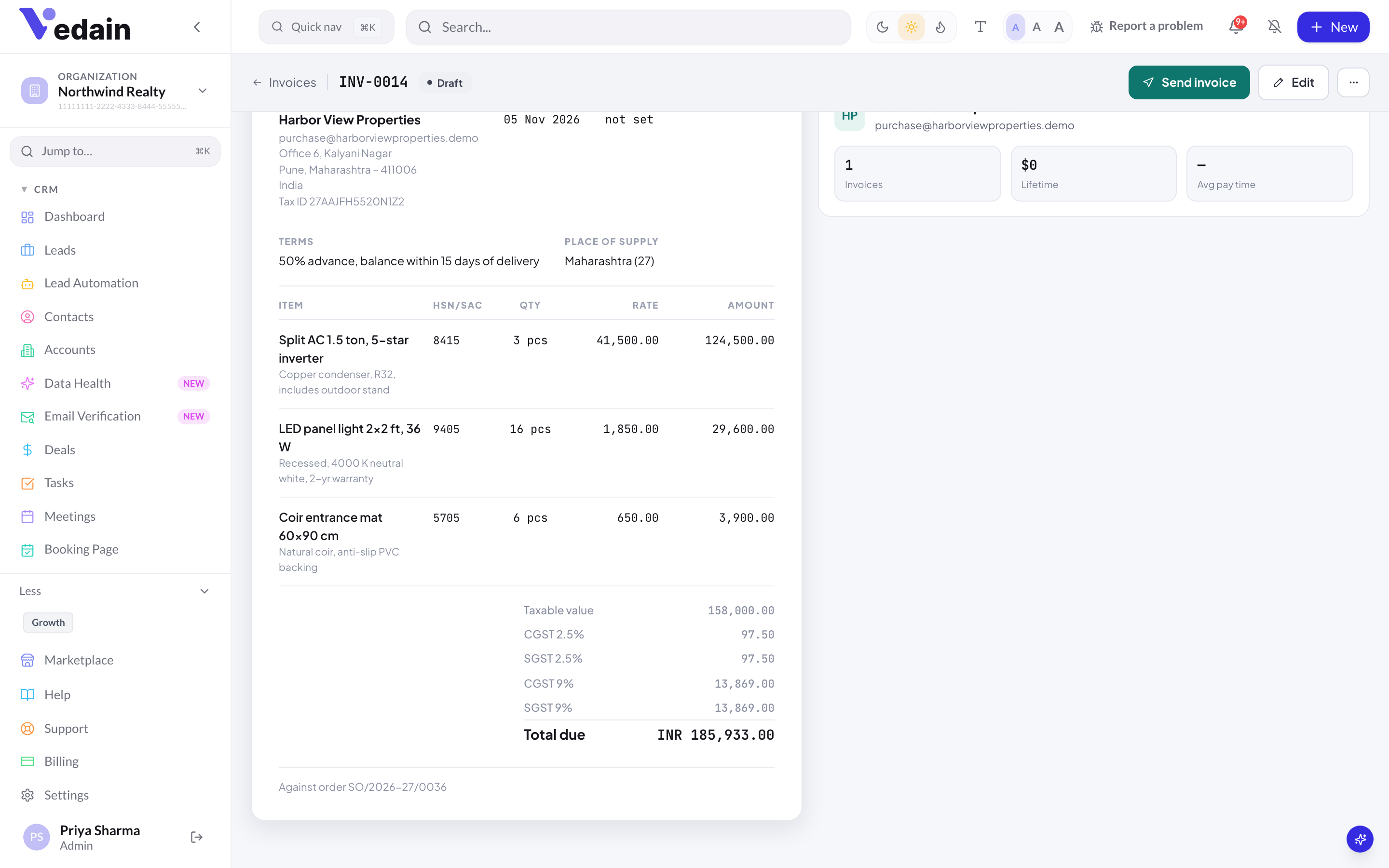
How GST is calculated (India)
- •Each line carries its own GST rate.
- •Same state as your “State you supply from” → CGST + SGST, half the rate each.
- •Different state → IGST.
- •Buyer outside India → export, zero-rated, no GST.
- •Place of supply is the value set on the order, else the ship-to state, else the state in the customer’s GSTIN, else the billing state. If it can’t be worked out, IGST is applied and the PDF says “Not set — IGST applied”.
- •Documents show rate-wise rows such as “CGST 9%”, “SGST 9%” or “IGST 18%”. Amounts are rounded half-up, per line and per component.
Indian workspaces get the same GST split on invoices raised directly in Invoices, too. The exception is an invoice that uses the invoice-level discount or tax fields: it keeps the older single-rate calculation. Outside India, each line has one tax at its own rate, labelled from your workspace tax settings.
Cess, reverse charge and SEZ supplies aren’t modelled, and exports are always zero-rated, with no choice between LUT and IGST-paid.
Record e-invoice (IRN) details
If you are required to e-invoice, generate the IRN on the government Invoice Registration Portal (IRP) first. Then open the invoice in the Invoices editor, expand E-invoice (IRN), and paste the IRN, Ack no., Ack date and Signed QR code text. The invoice PDF prints the QR code. As the editor says: “Vedain records these — it doesn’t file with the GST portal.”
Issue a credit note
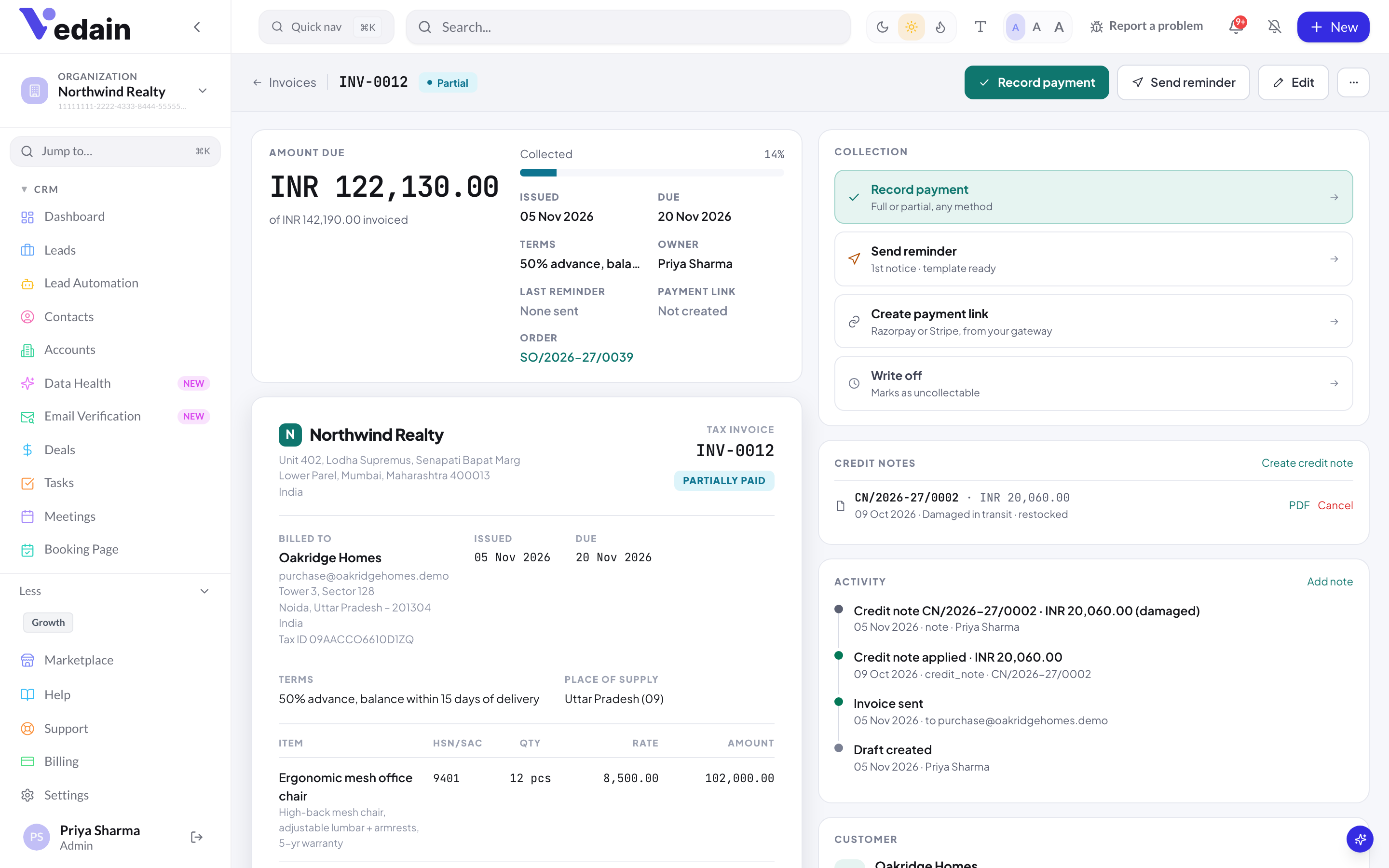
Use a credit note for returns, short supply, damage or a price correction. The original invoice stays as issued. Credit notes are raised against an issued tax invoice, not a draft or a pro forma.
- Open the invoice on the Invoices page. In the CREDIT NOTES card, click Create credit note.
- Pick the reason: Goods returned, Short supply, Damaged in transit, Price correction, Discount after sale or Other. Set the date.
- Enter the quantity to credit on each line. Each line shows how much is left to credit. For a price correction, also enter the credit per unit (the price difference).
- For goods from your catalog, tick Put returned goods back into stock if they came back in sellable condition.
- Add a note if you like, check the estimate and click Issue credit note.
The credit comes off the invoice’s balance. If it is more than the balance due, the extra is recorded as refund due. Vedain doesn’t send refunds through your gateway, so pay the customer back yourself. Credit notes are numbered CN/2026-27/0001 in India and print as a “Credit note” PDF. They also appear in the order’s INVOICES card. Cancel on a credit note reverses both the credit and any restock.
What “Closed” means
An order becomes Closed when every line is fully dispatched (or completed) and fully invoiced. Payment isn’t part of the status, so a closed order can still have a balance to collect. Check the PAID figure on the order’s progress strip, or the Dispatched, Not Invoiced and Open Order Book reports. Whenever an invoice or credit note changes, the order’s invoiced, returned, credited and paid totals are recalculated.
Good to know
- •Invoice numbers use the Invoices module’s own series (INV-0001 by default). It continues across years; only SO, DC and CN numbers restart each financial year.
- •No GST return filing or GSTR-1 export, and no e-invoice or e-way bill generation.
- •The TallyPrime connector exports invoices only. It doesn’t export orders, challans, credit notes or stock.
- •Up to 300 lines per credit note; an order lists up to 200 invoices and 200 credit notes.
Frequently Asked Questions
Can I invoice before I dispatch?
Yes. Invoice everything left bills the full remaining quantity, whatever has been dispatched. You can also send a pro forma for the full order or for the advance only.
Is Vedain GST-compliant?
Vedain splits CGST, SGST and IGST by place of supply, prints HSN/SAC codes and keeps financial-year numbering within 16 characters. It doesn’t file returns, generate e-invoices or e-way bills, or look up GSTINs on the GST portal.
Why can’t my sales rep raise an invoice from an order?
Invoicing needs edit access to Invoices, which Sales Reps don’t have by default. An admin can grant it in Settings → Team → Roles & permissions.
Bill exactly what you shipped, with the GST split worked out for you.
Start your free trial of Vedain.
Start Free Trial