Assign an order to a person and a team
In the order editor, Assigned to sets the person who handles the order. It defaults to “Me (creator)”. If your workspace has teams, you can also pick a Team. Teams are set up in Settings → Team. A reassignment is written to the order’s activity log and fires the Order Assigned / Reassigned workflow trigger. On the Orders page, filter with Everyone’s orders, Assigned to me or a specific team.
Choose who sees which orders
An admin picks the mode in Order settings → WHO HANDLES ORDERS:
- •Everyone with Orders access sees all orders (default). Simple, and good for small teams.
- •Only the assigned person and their team. Admins and Managers still see every order. Everyone else sees orders assigned to them, orders assigned to a team they belong to or lead, and orders they created. Team leads also see orders owned by members of the teams they lead.
Order reports follow the same rule, so a rep sees only the orders they could open.
Assign teams automatically with a workflow
- Open Workflows and create a workflow with the trigger Order Status Changed (in the Orders & Inventory group).
- Optionally add an If / Then condition, for example status equals confirmed.
- Add the action Assign Owner and choose Team. Pick the team, and leave Also assign a team member (round-robin) ticked to share orders across its members.
The original sales executive
When an order is confirmed, Vedain records who sold it: the deal owner if the order has a deal, otherwise the order’s assigned person. This Original sales executive shows in the order’s SALES OWNERSHIP card and isn’t changed by reassignment. Only an admin can change it, with Correct, picking the person under Sold by and giving a reason. The change is recorded with their name.
Hand the customer back after delivery
AFTER DELIVERY in Order settings is on by default. When every dispatch is delivered (or the services are completed), the linked deal goes back to the original sales executive. After Follow up after business days (Mon–Fri, default 2) they get a high-priority “Post-delivery follow-up” task and a bell notification. If they have left the team, the task goes to the person set in If they’ve left the team, else the first active manager, else an admin, and admins are alerted. This happens once per order.
On the order, click Record follow-up to log receipt, Started using it? (Yes, using it / Not yet / Don’t know), how-to-use shared, How happy are they?, any issue, a next follow-up date and the expected reorder date. An issue opens a high-priority task. A next follow-up date opens a task too. “Yes, using it” moves the deal to a “Product Using” stage, if you have one.
Reorder reminders
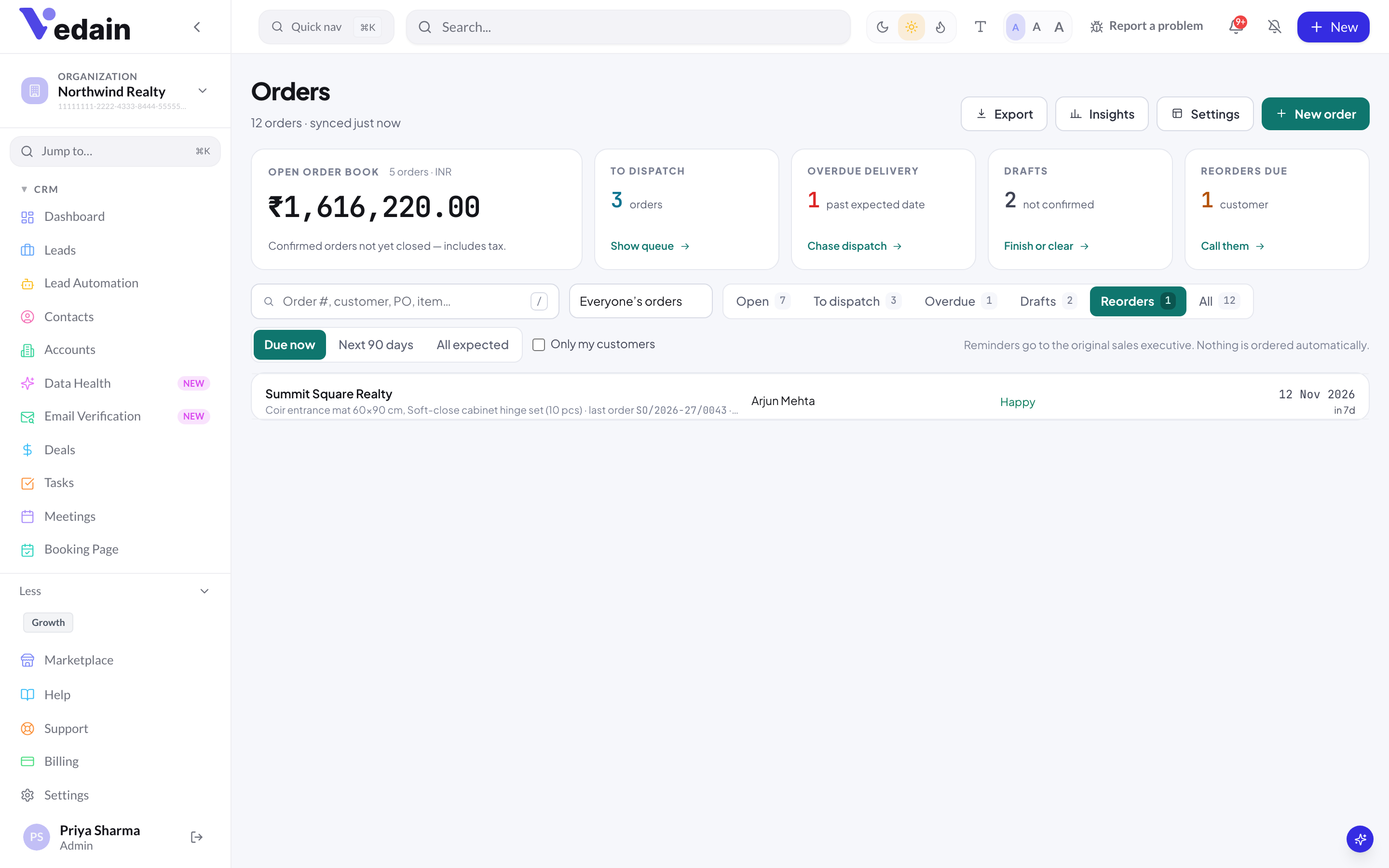
REORDER REMINDERS are on by default, but they need a cycle. The expected reorder date is the delivery date plus the shortest Customer reorders after days among the order’s products. Products without one use the Default cycle in Order settings, which starts at 0, meaning no cycle. A daily check creates a “Reorder due” task and a bell notification for the original sales executive Remind … days before the date (default 7).
- •See who’s due in Orders → Reorders: Due now, Next 90 days or All expected. Tick Only my customers for your own list.
- •On the order, use Change reorder date, or No reorder expected with a reason to stop the reminder.
- •Start repeat purchase creates a new deal at the stage you pick, owned by the original sales executive. You can tick Also start a draft order with the same items. The delivered order is never reopened, and each order can start one repeat. This needs Deals edit access.
- •Nothing is ordered automatically. Reminders prompt your team to call the customer.
Move the deal with the order
MOVE THE DEAL in Order settings moves the linked deal when the order is confirmed (or resumed), put on hold, cancelled, sent back to processing after a failed delivery, or followed up as in use. By default each event uses a stage named “Order Confirmed”, “Order On Hold”, “Order Cancelled”, “Delivery Cancelled” or “Product Using”, only if your pipeline has a stage with that exact name. You can map each event to another stage or choose Don’t move the deal.
Order insights
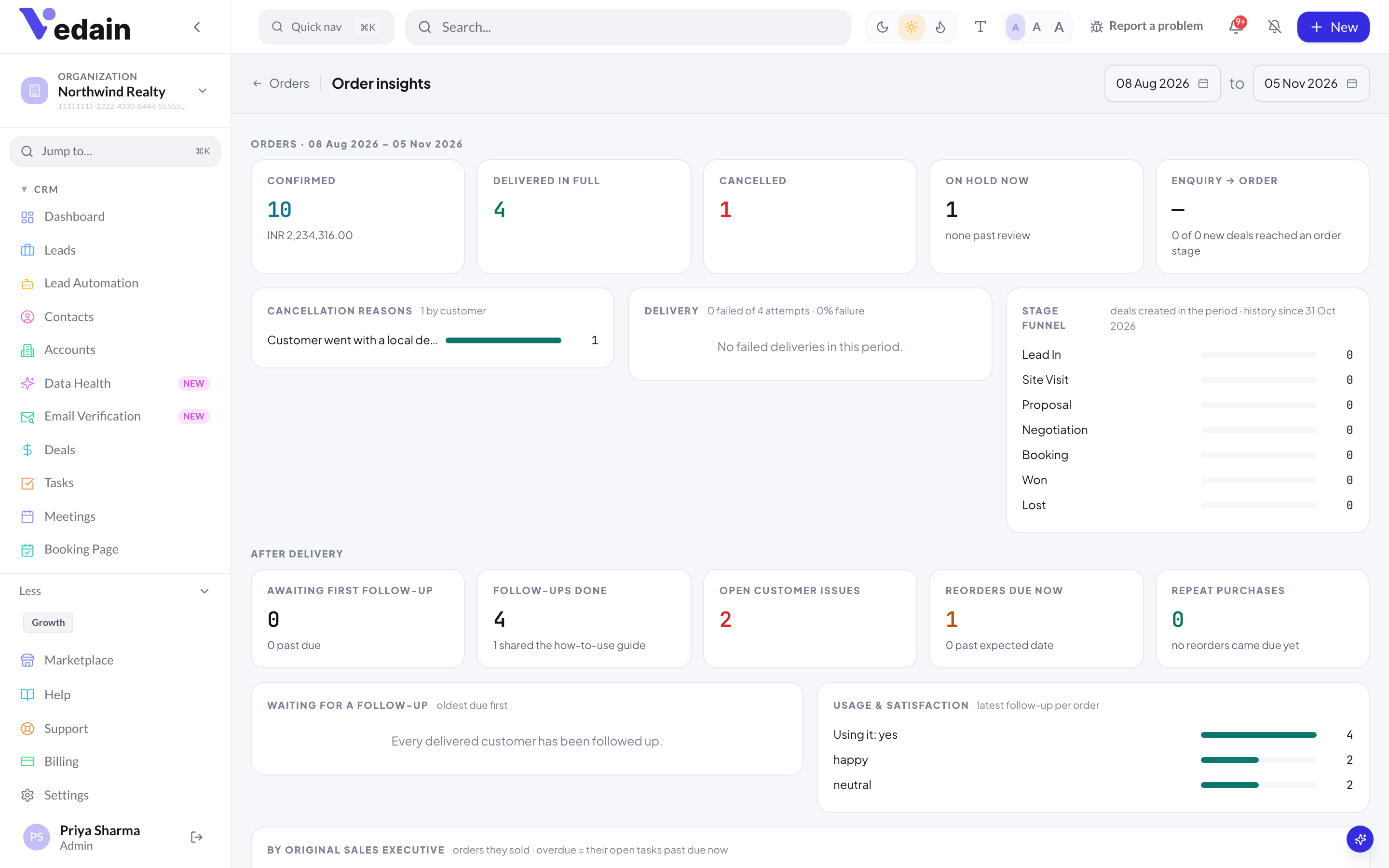
Click Insights on the Orders page for a manager’s view of the last 90 days by default. Pick any range up to one year. Sections cover cancellation reasons, delivery failures, a stage funnel, customers waiting for a follow-up, usage and satisfaction, and BY ORIGINAL SALES EXECUTIVE: orders, value, delivered, follow-ups, awaiting, repeat started, repeat confirmed and overdue tasks per person.
The eight Orders & Inventory reports
In Reports, open the Orders & Inventory category: Open Order Book, Pending Dispatch, Dispatched, Not Invoiced, Sales by Product, Sales by Customer, Order Value Trend, Stock Summary & Valuation, and Low Stock. The two stock reports need Inventory access. Reports can be scheduled, and a scheduled send is skipped if its creator has lost access. They can’t be added to custom dashboards.
Workflow triggers for orders
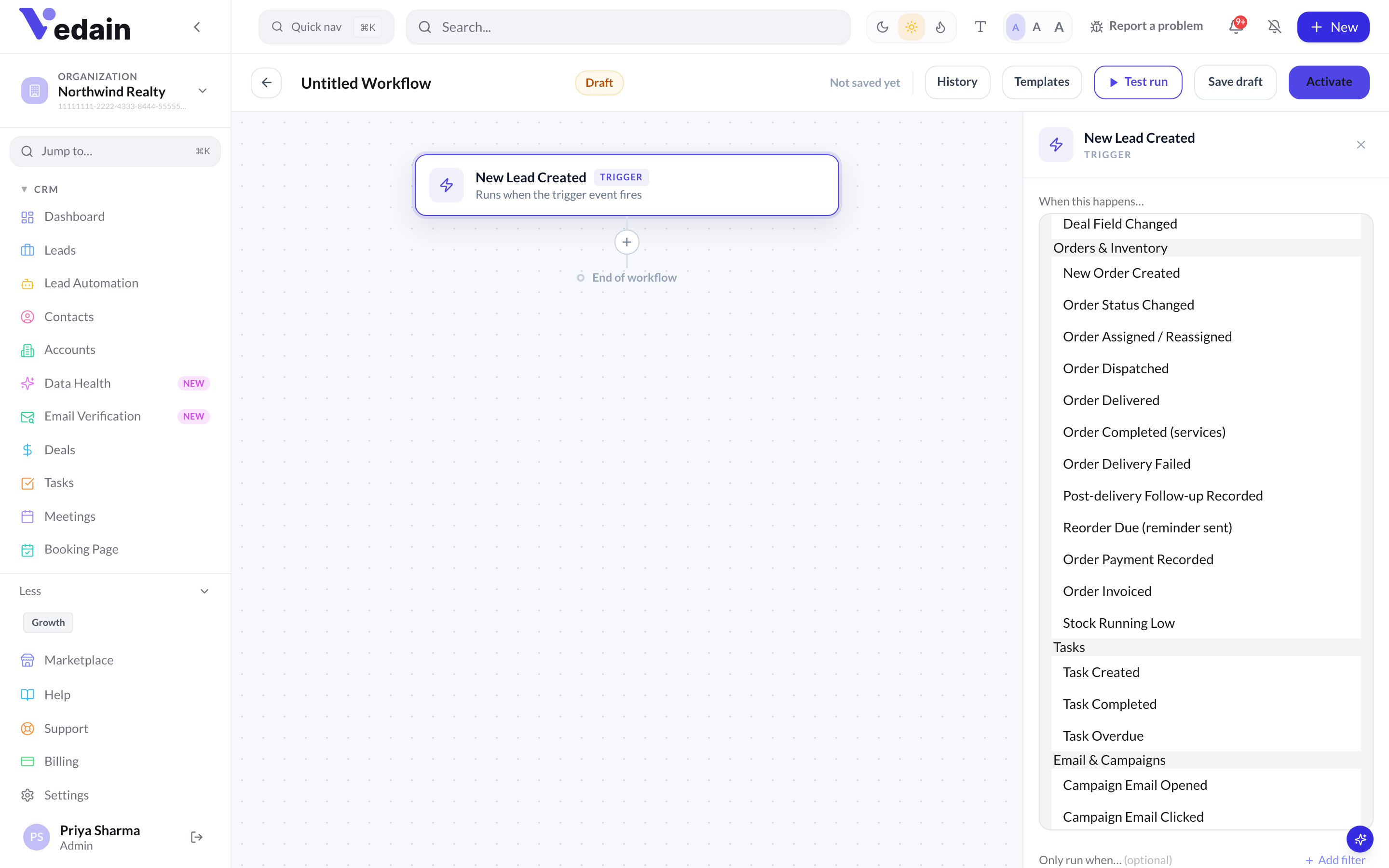
The workflow builder has an Orders & Inventory trigger group: New Order Created, Order Status Changed, Order Assigned / Reassigned, Order Dispatched, Order Delivered, Order Completed (services), Order Delivery Failed, Post-delivery Follow-up Recorded, Reorder Due (reminder sent), Order Payment Recorded, Order Invoiced and Stock Running Low.
Order workflows use the standard actions, such as Send Email, Send WhatsApp, Create Task, Notify User, Assign Owner and Webhook. Send Email and Send WhatsApp go to the customer email and phone on the order. Conditions can check order fields such as status, previous status, total, currency, place of supply, expected date and item count. Triggers run in the background and never hold up the order action.
Good to know
- •There are no order-specific workflow actions: a workflow can’t create, confirm or dispatch an order.
- •Overdue task escalation (Settings → Notifications) is a workspace-wide setting for all tasks, off by default. It isn’t specific to orders.
- •The reorder check runs about once a day.
- •Team bell notifications are in-app only.
Frequently Asked Questions
Will sales reps see each other’s orders?
With the default setting, yes: everyone with Orders access sees all orders. Switch WHO HANDLES ORDERS to Only the assigned person and their team to limit reps to their own and their team’s orders. Admins and Managers always see everything.
Why aren’t reorder reminders appearing?
Reminders need a cycle. Set Customer reorders after on your products, or a Default cycle in Order settings, which is 0 (none) until you change it. The order must also be delivered.
Does Vedain create the repeat order for me?
No. Vedain reminds the original sales executive. They click Start repeat purchase to open a new deal and, optionally, a draft order with the same items.
Keep the salesperson who won the order close to the customer.
Start a free trial of Vedain today.
Start Free Trial