Four ways to start an order
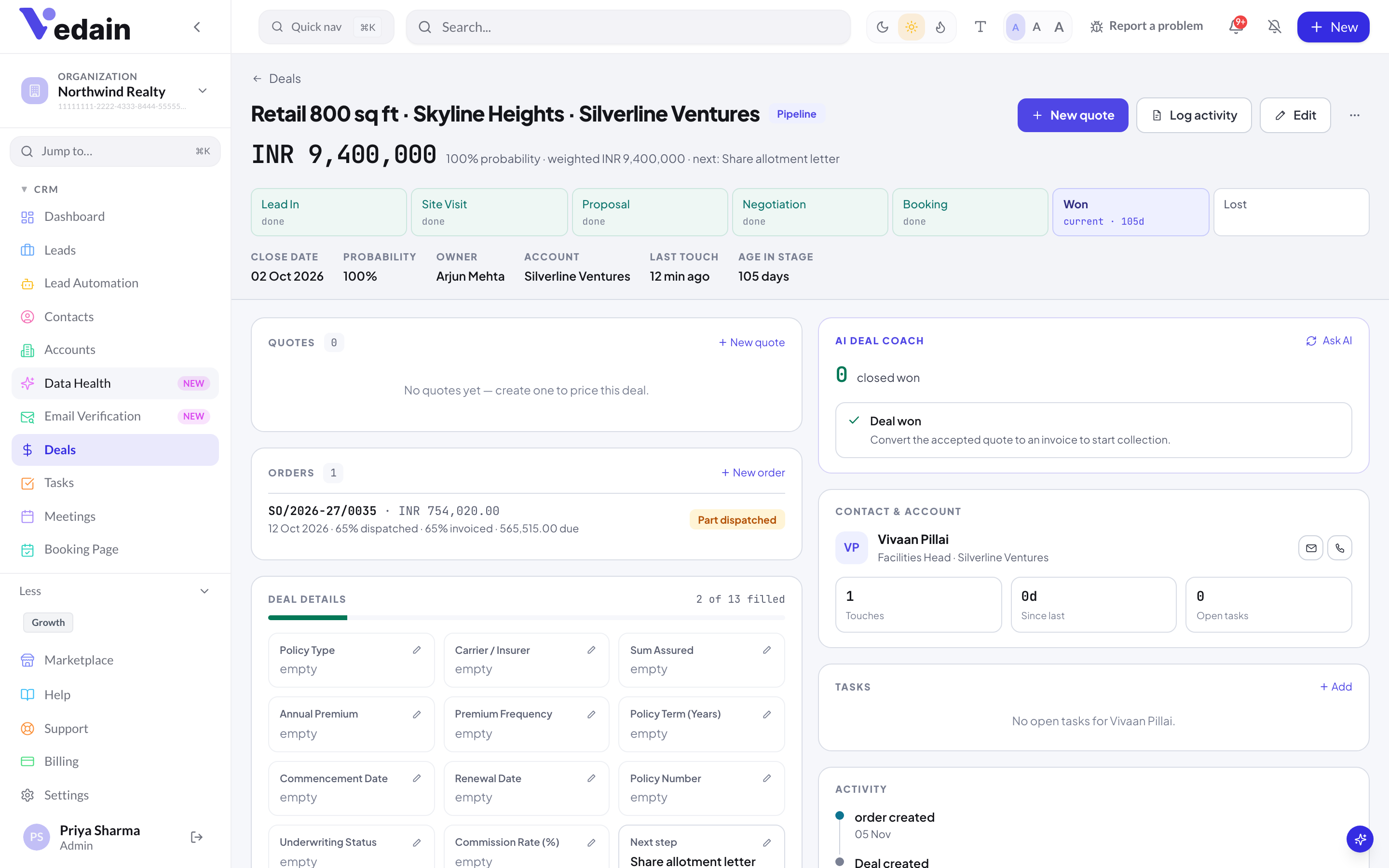
- •From a quote: on the deal page, click Convert to order on the deal’s current quote in the QUOTES card.
- •From a deal: click + New order in the deal’s ORDERS card. The customer is filled in from the deal; you add the items.
- •From a customer record: on an account, contact or lead page, use the Create order quick action.
- •From scratch: open Orders in the sidebar and click New order.
In every case the order starts as a draft and opens in the order editor. The customer’s name, email, phone, GSTIN and billing address are copied from the linked account, then the contact, then the lead.
Convert a quote into an order
- Open the deal and find its quote in the QUOTES card.
- Click Convert to order. Vedain creates a draft order with the quote’s lines, customer, currency, payment terms and notes, and opens it in the editor.
- Check the customer, place of supply and delivery date, then confirm the order (see below).
Converting a quote marks the quote as accepted. Each quote can have only one order that isn’t cancelled. Once an order exists, the quote’s button reads View order. The quote has a single tax rate, so every line is given that rate. If your products carry different GST rates, correct each line before you confirm.
Fill in the order editor
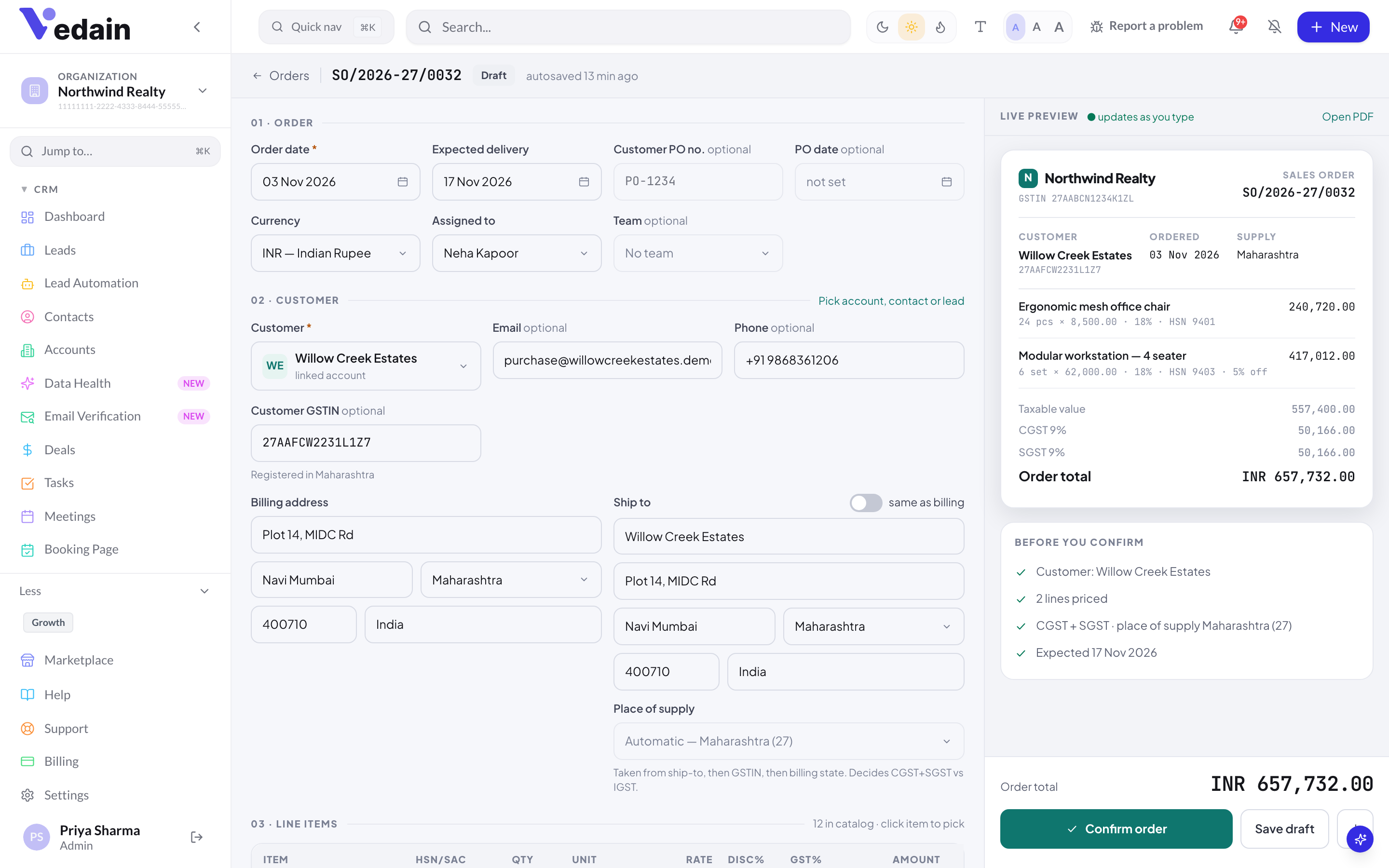
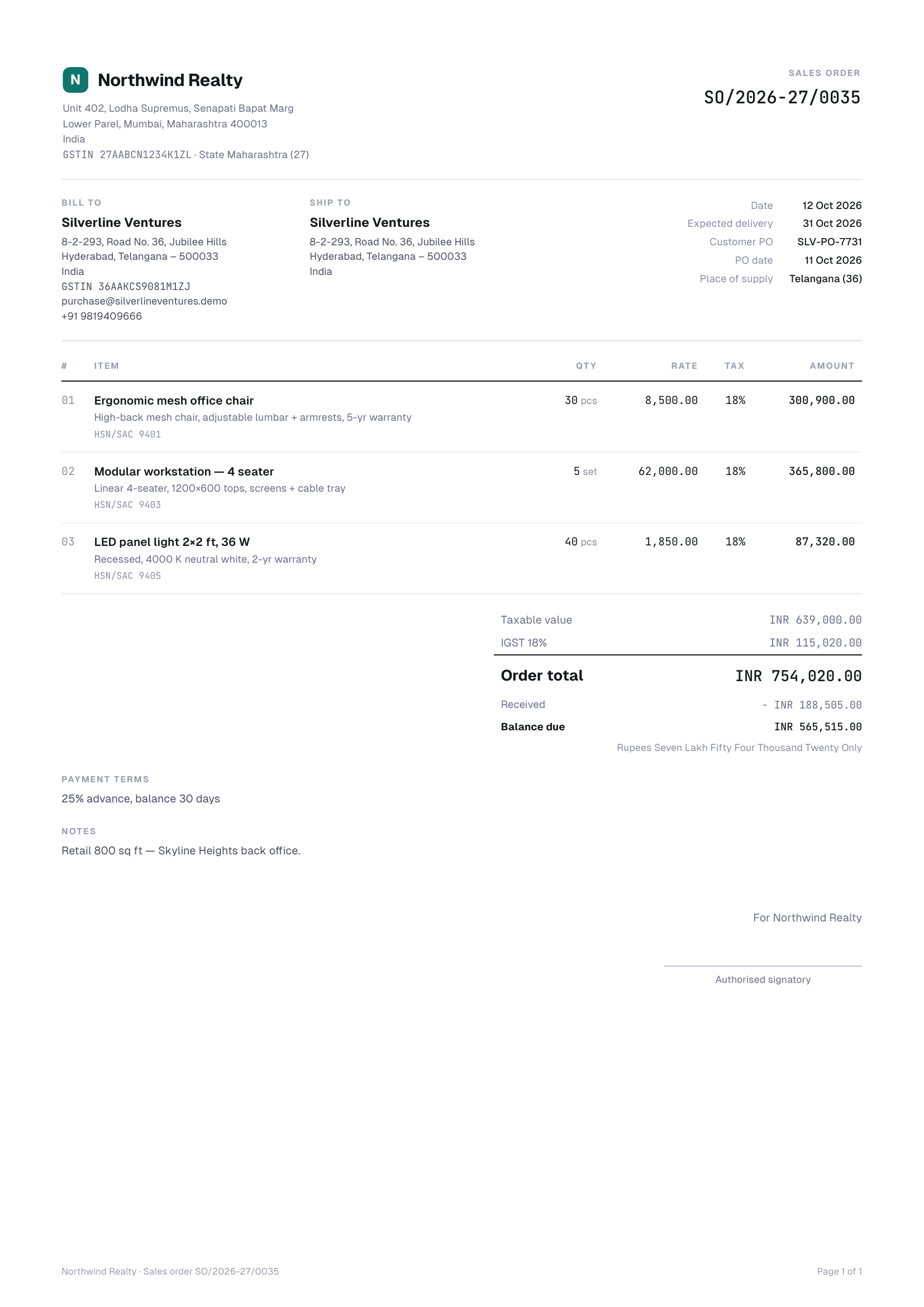
The editor has numbered sections on the left and a LIVE PREVIEW of the sales order on the right. Click Open PDF to see the full document.
- 01 · ORDER: Order date, Expected delivery, the customer’s PO number and PO date, Currency, Assigned to (defaults to “Me (creator)”) and, if you use teams, a Team.
- 02 · CUSTOMER: search accounts, contacts and leads, then check the email, phone, GSTIN and Billing address. Add a ship-to address, or tick same as billing. In India, check Place of supply.
- 03 · LINE ITEMS: click Add from catalog to pick a product (its item type, HSN/SAC code and unit come with it), or Add line to type one. Each line has a name, description, HSN/SAC, unit, quantity, rate, discount % and tax %. A typed item can be saved with Add “…” to catalog.
- ADDITIONAL DETAILS: your custom fields for orders, if you have any. Manage fields opens Settings → Custom fields.
- 04 · PAYMENT: under Ask for an advance, choose No advance, % of total (up to 100%) or Fixed amount.
- 05 · TERMS & NOTES: pick Payment terms (100% advance, 50% advance, 50% before dispatch, Against delivery, Net 15, Net 30, Net 45 or Net 60) or type your own. Add Notes on the order, which print on the PDF, and Internal notes, which only your team sees.
GST and HSN/SAC codes
In Indian workspaces each line has its own GST rate. If the place of supply is in your state, the tax is split CGST + SGST, half the rate each. If it is in another state, IGST applies. A buyer outside India is treated as an export: zero-rated, with no GST. Place of supply comes from ship-to, then the customer’s GSTIN, then the billing state. If neither your state nor the place of supply is known, IGST is applied.
HSN codes (goods) and SAC codes (services) come from the product, or you can type them on the line. They print on documents for Indian workspaces only. Outside India the column is TAX%: one tax per line, labelled from your workspace tax settings.
Save a draft or confirm the order
The BEFORE YOU CONFIRM checklist under the preview flags what’s missing: no customer, no priced lines, an unknown place of supply, your GST state not set, a GSTIN that looks wrong, no expected delivery date, or a required custom field left empty.
- •Save draft keeps the order as a draft. Once saved, drafts also autosave while you edit.
- •Confirm order needs at least one line, a customer name and every required custom field. Confirming records the original sales executive: the deal owner if there is a deal, otherwise the order’s assigned person.
Clicking twice, or a connection retry, doesn’t create a duplicate order. Vedain returns the same order.
How order numbers work
Orders are numbered SO/2026-27/0001, SO/2026-27/0002 and so on in India. The series restarts on 1 April each financial year. Elsewhere numbers follow the calendar year, for example SO/2026/0001. A draft gets its number as soon as it is created, which is when it is first saved, or straight away when you start it from a quote, deal or customer record. Deleting a draft leaves a gap in the sequence. Invoices use their own series (INV-0001 by default), which doesn’t restart each year.
Changing an order after it is confirmed
- •Click Edit on the order, then Save changes. You can’t remove a line, or cut its quantity, below what has already been dispatched or invoiced.
- •Put on hold needs a reason and a review date. It creates a review task for the order owner. Resume order puts it back in the dispatch queue.
- •Cancel order needs a reason and who cancelled it (the customer or you). It isn’t possible once anything is dispatched or invoiced, or after a payment is recorded.
- •Only drafts can be removed, with Delete draft. Confirmed orders are cancelled instead.
- •Duplicate starts a new draft with the same customer, addresses, terms, advance and lines.
- •Once every dispatch is delivered, the order shows Delivered · locked. Only an admin can change it, with Correct and a reason. Each changed field is kept in a corrections audit.
Find a customer’s orders
Orders appear in the activity feed on the linked lead, contact and account pages, under All and an Orders tab. On the Orders page, search by order number, customer, PO or item, or use the tabs Open, To dispatch, Overdue, Drafts, Reorders and All. Export downloads the orders in the list as a CSV.
Good to know
- •Up to 300 lines per order. Quantity must be above 0; discount and tax are 0–100%.
- •Cancelled and closed orders can’t be edited.
- •There is no order approval step, credit limit check or customer e-signature. Confirming is an internal action.
- •Next: Dispatches and delivery challans.
Frequently Asked Questions
Does converting a quote tell the customer anything?
No. Converting marks the quote as accepted inside Vedain and creates a draft order. Nothing is sent until you click Send on the order, or switch on the Order confirmed customer update.
Can I import orders from a spreadsheet?
No. Orders have no CSV import. Products and opening stock can be imported, so the catalog is quick to set up.
Why does my order show IGST for a customer in my state?
Vedain applies IGST when it can’t tell where the supply goes. Set your state in Order settings and add a ship-to state, the customer’s GSTIN or a billing state, or set Place of supply on the order.
Go from accepted quote to confirmed order in a minute.
Start a free trial and install Orders & Inventory from the Marketplace.
Start Free Trial