Choose which products track stock
Stock lives on your product catalog in Settings → Products. Open a product and check these fields:
- •Item type: Goods or Service. Services never track stock; they are marked complete on an order.
- •Track stock: Yes or No. Goods track stock by default. Set No for items you don’t count, such as freight charges.
- •Reorder level: the quantity at or below which the item counts as low stock.
- •Cost price: used to value your stock.
- •HSN code (goods) or SAC code (services): 2–8 digits. Printed on orders, challans and invoices in India.
- •Customer reorders after: the number of days after delivery when a customer usually buys again. It drives reorder reminders.
- •In stock: the current on-hand quantity. It is read-only; change it from the Inventory page.
Products can be bulk-imported, up to 500 rows at a time. Rows whose item code already exists are skipped.
The Inventory page
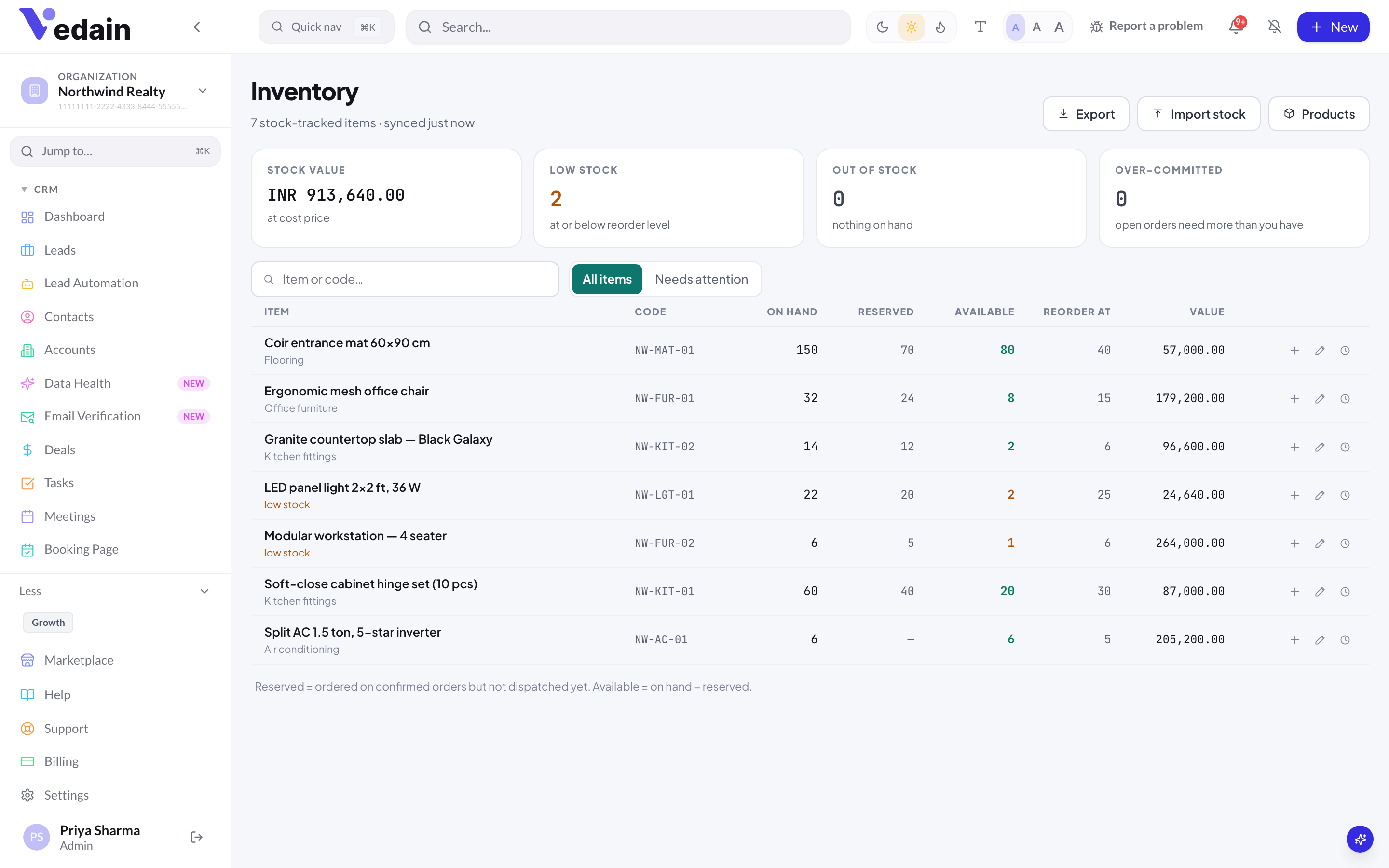
Click Inventory in the sidebar’s Finance group. You need the Orders & Inventory module installed and Inventory access. The tiles at the top show STOCK VALUE (at cost price, per currency), LOW STOCK, OUT OF STOCK and OVER-COMMITTED. Below them, each stock-tracked item shows its code, on hand, reserved, available, reorder level and value.
- •Switch between All items and Needs attention (low or over-committed).
- •Search with Item or code….
- •Export downloads the stock list as a CSV.
- •Products opens Settings → Products.
Load opening stock from a CSV
- On the Inventory page, click Import stock.
- Click Template to download a sample file with the columns code, name, qty.
- Click Choose CSV, or paste the rows into the box.
- Pick Set balance (opening / count) to replace each item’s on-hand quantity, or Add to current stock to add to it.
- Click Import. Rows are matched by item code first, then by name. Only items with stock tracking on are updated, and skipped rows are reported.
An import takes up to 5,000 rows. Use Set balance again after a physical count. Importing needs Inventory import access, which Admins and Managers have by default.
Record goods received (Stock in)
- Find the item and click the Stock in icon.
- Enter the Quantity and, optionally, the Unit cost, Supplier, Bill / GRN no. and a Note.
- Check the preview line (“On hand: 40 → 140”) and click Save.
A unit cost updates the product’s cost price. The supplier is a free-text field: Vedain has no purchase orders or supplier records.
Adjust stock
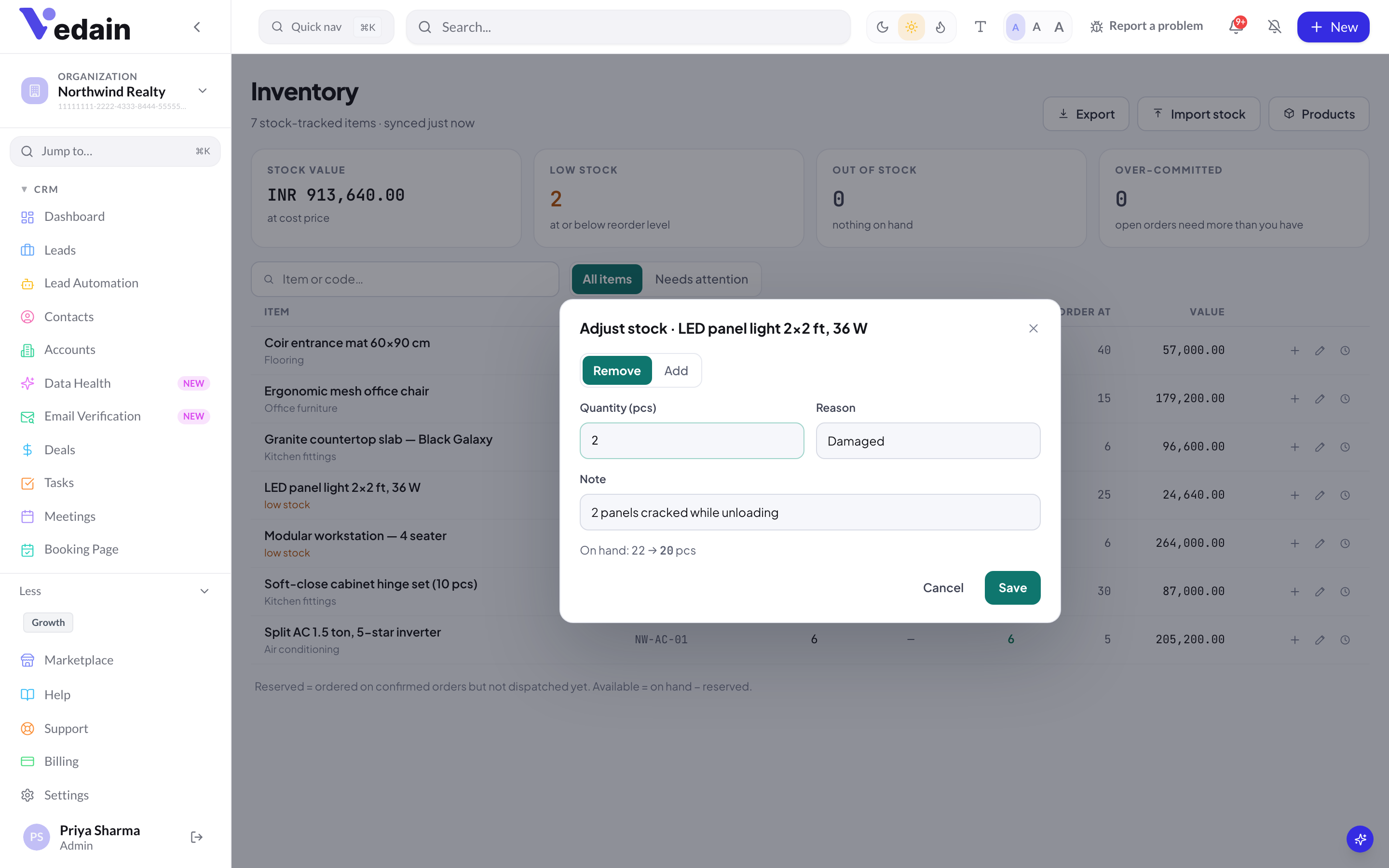
Use Adjust for anything that isn’t a sale or a delivery from a supplier. Choose Remove or Add, enter the quantity, pick a Reason (Stock count, Damaged, Lost / missing, Found, Sample or Other), add a note and click Save. Stock in and Adjust need Inventory edit access; Sales Reps can view stock but not change it by default.
Stock history
Click History on an item to see its movement ledger. Each row shows the movement type, the quantity, the balance after it and who made it. Movement types are Opening / counted, Adjusted up, Adjusted down, Stock in, Dispatched, Returned and Dispatch cancelled. Dispatches, cancelled dispatches, failed deliveries that return goods to stock, and credit notes with restock all write to this ledger on their own.
Reserved and available
Reserved is the quantity on confirmed, part-dispatched and on-hold orders that hasn’t been dispatched yet. Available = on hand − reserved. An item is over-committed when available is below zero.
Reserved is worked out each time stock is shown, so you can see what’s promised. It doesn’t lock units to an order: a dispatch only checks on-hand stock, so another order can still use those units. Two dispatches can’t both take the last units at the same moment.
Negative stock
By default, a dispatch that would take on-hand stock below zero is blocked. If you sometimes ship before recording stock-in, an admin can switch on Allow dispatch without enough stock under STOCK in Order settings.
Low-stock alerts
When an item drops to its reorder level or below, Vedain sends an in-app bell notification, by default to your workspace admins (up to 10). The alert fires once, and re-arms when the item goes back above its reorder level. It also fires the Stock Running Low workflow trigger, so you can build a workflow that creates a task or notifies a user. Low-stock alerts are not emailed, and nothing is purchased automatically.
Good to know
- •Single location. Each product has one stock figure. There are no warehouses, bins or stock transfers.
- •No batch or lot numbers, serial numbers or expiry dates.
- •No bill of materials, kits or assembly. Units are labels, with no unit conversion.
- •The Inventory list shows up to 2,000 stock-tracked items. History shows up to 200 movements per page.
- •Two reports, Stock Summary & Valuation and Low Stock, are under Reports → Orders & Inventory for users with Inventory access.
- •A product’s Customer reorders after days drive reorder reminders: see Team visibility and reorders.
Frequently Asked Questions
Does confirming an order reserve the stock?
It counts towards Reserved, so the Inventory page shows what is promised. It doesn’t block another order from dispatching those units. Only on-hand stock is checked at dispatch.
Can I track stock in more than one warehouse?
No. Orders & Inventory keeps one stock figure per product. Businesses with several warehouses would need to track locations elsewhere.
How do I record a stock count?
For a few items, use Adjust with the Stock count reason. For many items, download the Import stock template, fill in the counted quantities by item code, and import it with Set balance (opening / count).
Know what’s on the shelf and what’s promised.
Start a free trial and switch on Orders & Inventory.
Start Free Trial