What Orders & Inventory covers
Orders & Inventory is an optional module for businesses that sell goods, services or both. It works on the same accounts, contacts, leads, deals and quotes your team already uses. A typical order goes through these steps:
- Quote to order. Convert an accepted quote, start an order from a deal or a customer record, or create one from the Orders page.
- Confirm. The order gets its customer, lines, GST or tax split and an optional advance request.
- Dispatch. Goods go out in one or more dispatches. Each dispatch gets a delivery challan and takes stock out. Services are marked complete instead.
- Deliver. Each dispatch is marked delivered, marked as a failed delivery, or rescheduled.
- Invoice. Raise a tax invoice from what was dispatched, from everything left, or from a single dispatch. Pro formas are possible too.
- Get paid. Send payment links from your own Razorpay, Stripe or PayPal account, or record payments by hand.
- Follow up. After delivery the customer goes back to the salesperson who won the order, and reorder reminders can follow.
Orders & Inventory has no separate charge. It comes with your Vedain plan. Usage-based extras, such as WhatsApp messages, are billed separately.
Install the module
The module is opt-in. Until a workspace admin installs it, the Orders and Inventory menus stay hidden.
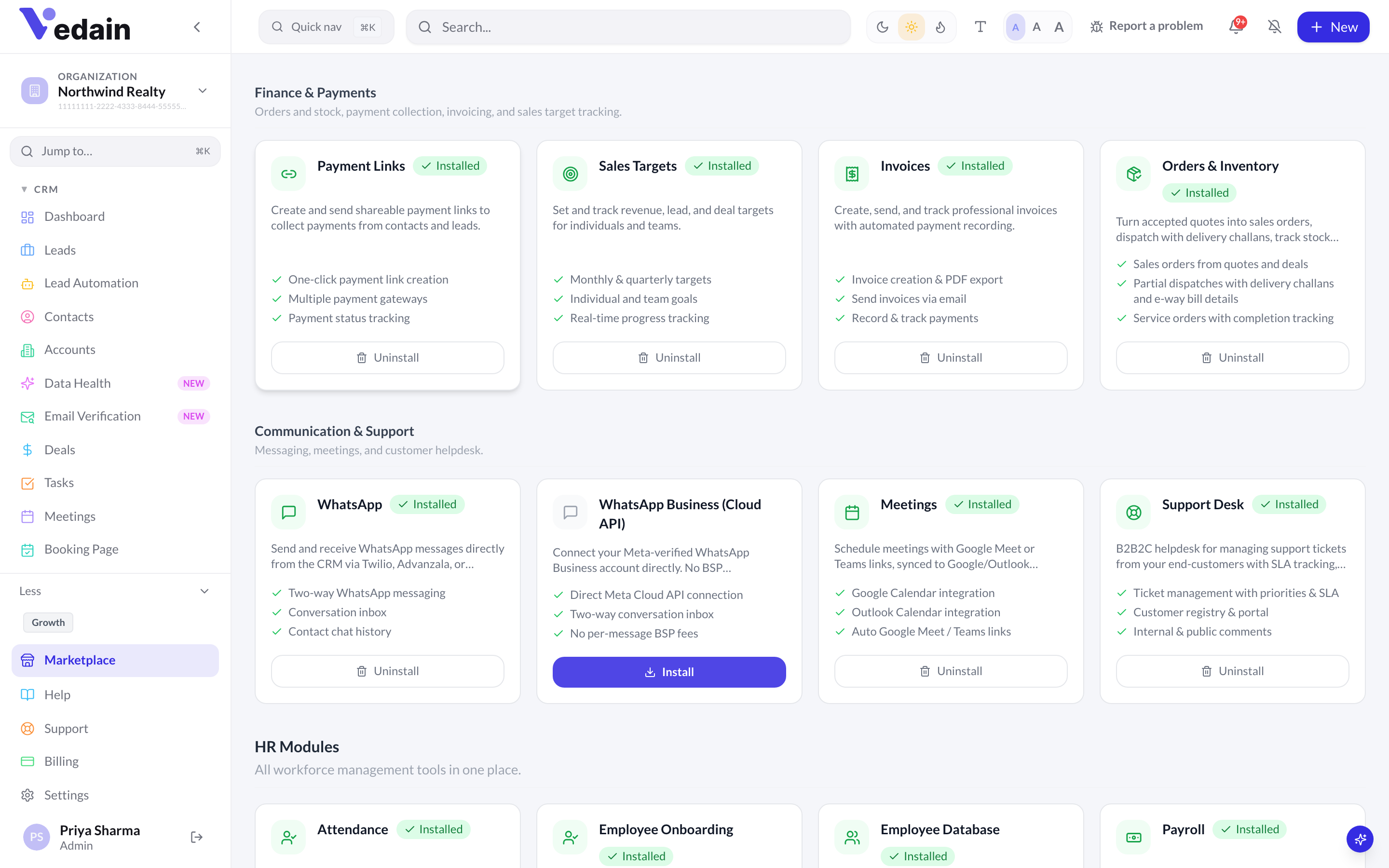
- Click Marketplace at the bottom of the sidebar.
- Open the Modules tab.
- Find Orders & Inventory in the Finance & Payments group.
- Click Install.
- Orders and Inventory now appear in the sidebar’s Finance group, and Settings gains an Orders & Inventory tab.
Only admins can install or uninstall modules. Invoices raised from an order open on the Invoices page. If Invoices isn’t in your sidebar, install the Invoices module from the same Marketplace group.
Give your team access
Orders & Inventory adds two permission modules, Orders and Inventory. You manage them in Settings → Team → Roles & permissions. The built-in roles start with these defaults:
| Role | Orders | Inventory |
|---|---|---|
| Admin | View, edit, export | View, edit, import, export |
| Manager | View, edit, export | View, edit, import, export |
| Sales Rep | View, edit | View only |
| HR roles | No access | No access |
A few actions need other permissions too:
- •Invoicing an order and raising credit notes need edit access to Invoices. Sales Reps don’t have Invoices access by default, so they can’t invoice an order until you grant it.
- •Starting a repeat purchase creates a deal, so it needs edit access to Deals.
- •Stock in, Adjust and Import stock on the Inventory page need Inventory edit (or import) access.
- •Order settings can be viewed by anyone with access, but only workspace admins can save them.
Set up Order settings
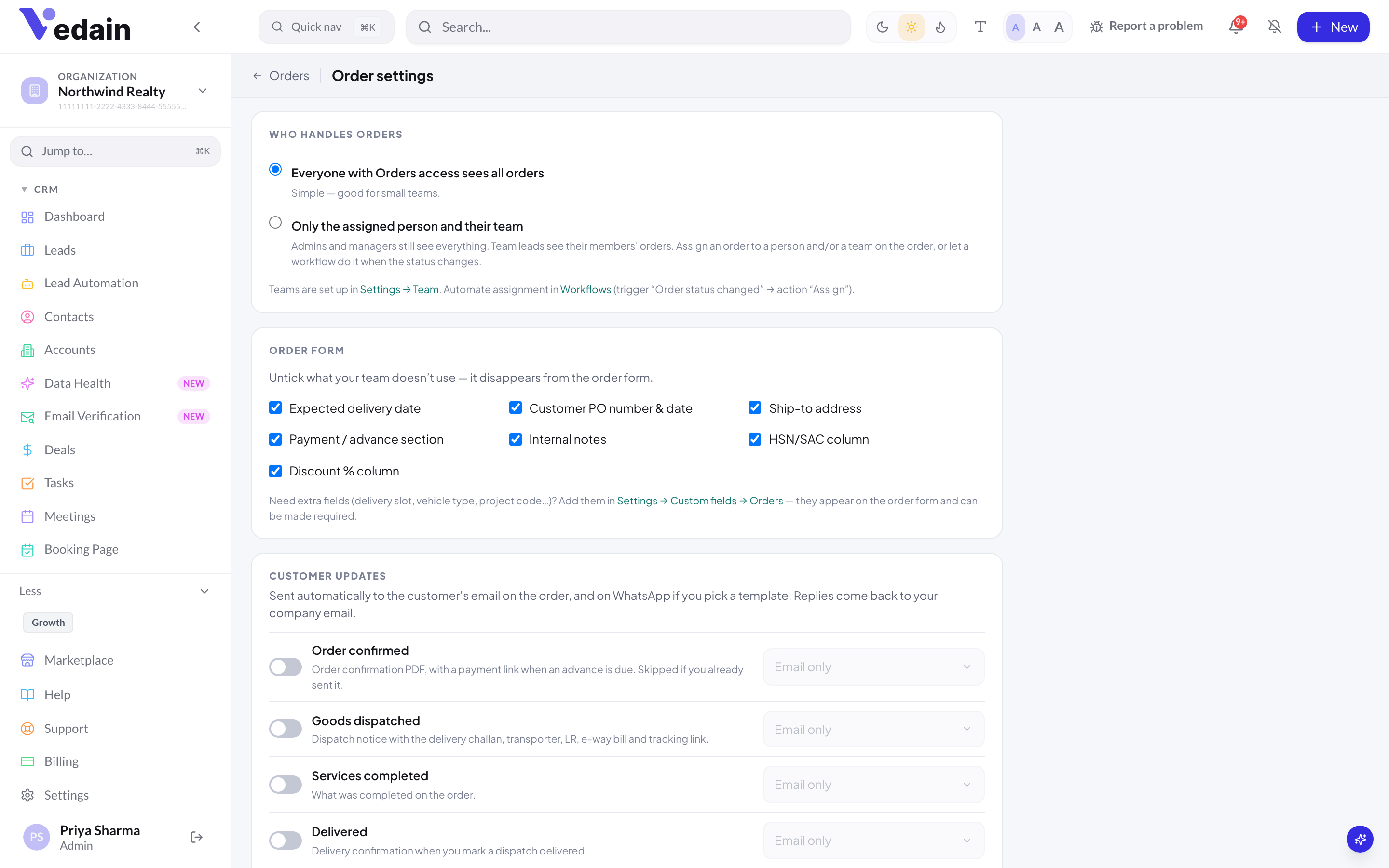
Open Orders and click Settings at the top right, or go to Settings → Orders & Inventory. Work through the cards from the top, then click Save settings.
YOUR GST REGISTRATION (Indian workspaces)
GSTIN is filled in from your company GSTIN or tax ID and printed on every order, challan and credit note. State you supply from is taken from the GSTIN, or from your company address. Buyers in this state get CGST + SGST; everyone else gets IGST. The GSTIN format is checked, but it isn’t looked up on the GST portal.
DOCUMENT NUMBERS
Set the prefixes for Sales orders (SO), Delivery challans (DC) and Credit notes (CN). Each prefix is 1–4 letters, digits or dashes. In India, numbers look like SO/2026-27/0001, restart every financial year on 1 April and stay within GST’s 16-character limit. Elsewhere they restart every calendar year, for example SO/2026/0001.
WHO HANDLES ORDERS
Choose Everyone with Orders access sees all orders (the default) or Only the assigned person and their team. See Team visibility and reorders for the exact rules.
ORDER FORM
Untick the fields your team doesn’t use and they disappear from the order form: Expected delivery date, Customer PO number & date, Ship-to address, Payment / advance section, Internal notes, HSN/SAC column and Discount % column. For extra fields, use Settings → Custom fields → Orders (text, number, checkbox, date or dropdown). Required custom fields are checked when an order is confirmed, not when a draft is saved.
CUSTOMER UPDATES
Four automatic emails: Order confirmed, Goods dispatched, Services completed and Delivered. All four are off by default. See Customer updates and payments.
MOVE THE DEAL, AFTER DELIVERY and REORDER REMINDERS
These control how orders move the linked deal’s stage, who follows up after delivery, and when reorder reminders go out. They are covered in Team visibility and reorders.
STOCK and DEFAULTS FOR NEW ORDERS
Allow dispatch without enough stock is off by default, which blocks a dispatch that would take stock below zero. Under DEFAULTS FOR NEW ORDERS, set the Payment terms and the Notes printed on the order that new orders start with.
Good to know
- •Orders can’t be imported from CSV. They are created in the app, from quotes, deals, customer records or the Orders page.
- •PDFs for orders, challans and credit notes use your default invoice template (accent colour, font, A4 or Letter).
- •Outside India there is no CGST/SGST/IGST split. Each line gets one tax, labelled from your workspace tax settings.
- •Next, create your first order: Create an order from a quote or deal.
Frequently Asked Questions
Does Orders & Inventory cost extra?
No. It is included in the Vedain plan at no extra charge. Optional WhatsApp customer updates use WhatsApp credits, which are a usage-based extra, and payment links use your own gateway account, so the gateway’s fees apply.
Who can install the module?
Only workspace admins can install or uninstall it, from Marketplace → Modules. Other users see the Orders and Inventory menus once it is installed and their role has access.
Does it work outside India?
Yes. Workspaces outside India get one tax per line, labelled and rated from their own tax settings, calendar-year document numbers, and no e-way bill or IRN fields. Vedain doesn’t set up VAT rates for you.
Turn accepted quotes into orders without retyping.
Install Orders & Inventory from the Marketplace and set up your numbering in a few minutes.
Start Free Trial