This guide walks you through the actual connection process, from linking your Outlook account to your CRM through two-way email sync so every message, contact, and reply gets logged automatically without manual data entry. You'll see what permissions to grant, what settings control sync frequency, and how to avoid duplicate contact records, a common headache with this kind of setup.
We'll cover the step-by-step setup for connecting Outlook to a modern CRM, checking your sync is working correctly, and using the integration daily to track deals straight from your inbox. If you're evaluating tools like Vedain CRM alongside your existing Outlook habits, you'll also see how fast implementation and flat pricing make this a five-minute job instead of an IT project.
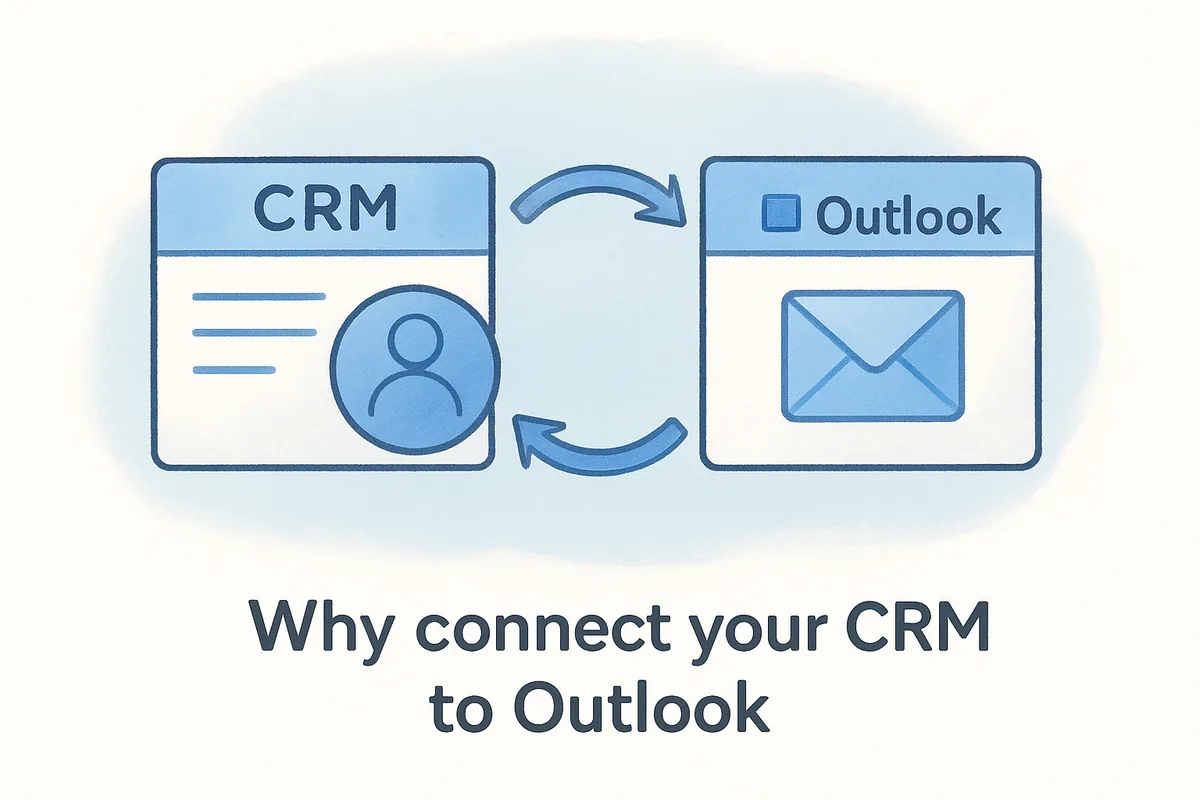
Why connect your CRM to Outlook
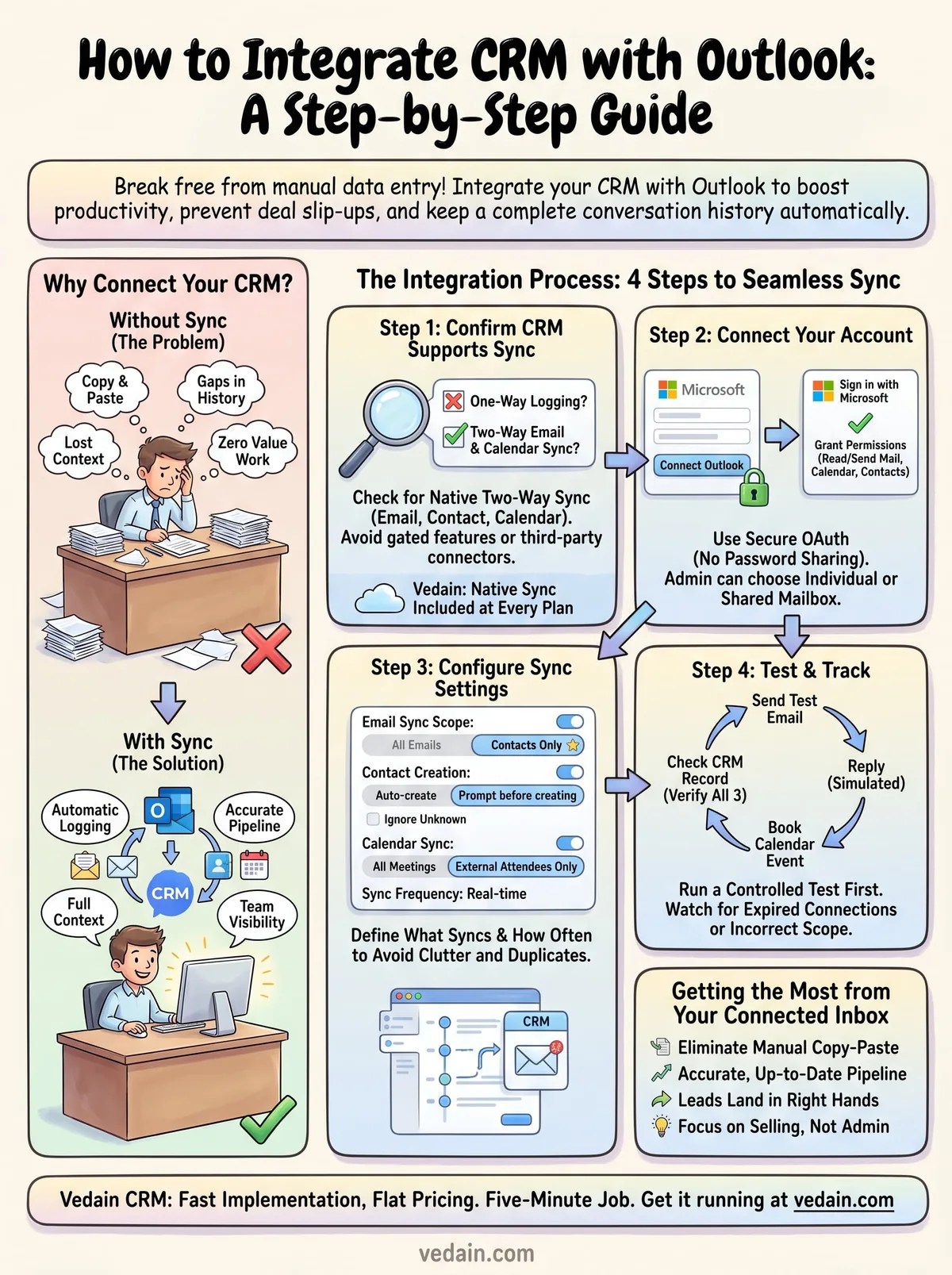
Sales reps spend a shocking amount of their day just copying information between two systems. You read an email in Outlook, then flip to your CRM to log the conversation, update the deal stage, and add a note before you forget the details. Do that 30 times a day across a team of 10, and you've burned hours on work that adds zero value to the customer relationship. Connecting your CRM to Outlook removes that copy-paste step entirely, because the email, the contact record, and the deal all live in the same data trail.
The real cost of manual logging
Without a sync, every rep decides for themselves what gets logged and what doesn't. Busy weeks mean shortcuts, and shortcuts mean gaps in the deal history. A manager pulls up a pipeline report and finds three touchpoints missing from a deal that's supposedly "in negotiation." That's not a training problem, it's a tooling problem. When Outlook and your CRM talk to each other automatically, the record stays accurate whether the rep remembers to update it or not.
A CRM that doesn't see your inbox is only seeing half the sales conversation.
What two-way sync actually gives you back
Once your Outlook account is linked, every inbound and outbound message tied to a known contact gets attached to that contact's timeline without anyone lifting a finger. New contacts who email you get created automatically instead of sitting in your personal inbox, invisible to the rest of the team. Meetings booked in Outlook show up against the right deal, so your manager can see exactly when the last conversation happened without asking you for an update. This matters most for teams juggling more than a handful of deals at once, since memory alone doesn't scale.
Here's a quick side-by-side of what changes once the integration is live:
Why this matters more for growing teams
A solo founder can probably keep every deal in their head. A team of eight reps managing 200 open opportunities can't. As headcount grows, the gap between what's in Outlook and what's in the CRM grows with it, and that gap is where deals quietly go cold. Connecting the two systems isn't a nice-to-have feature, it's the difference between a CRM that reflects reality and one that's a few weeks behind it. That's also why fast, low-friction setup matters: a sync that takes an afternoon of IT configuration to get working right rarely gets maintained long term.
Step 1. Confirm your CRM supports Outlook sync
Before you touch a single setting, check what kind of Outlook integration your CRM actually offers. Not all "integrations" are equal. Some CRMs only support one-way logging (Outlook to CRM), while others offer true two-way email sync where replies, new contacts, and calendar events flow in both directions automatically. If you're comparing tools, this distinction should be near the top of your checklist, not something you discover after you've already migrated your data.
Check the sync type, not just the checkbox
Many CRM pricing pages list "Outlook integration" as a feature without specifying what that means in practice. Look for the specific mechanics before you commit:
- •Does it sync both directions, or just pull Outlook data into the CRM?
- •Does it support both Outlook desktop and Outlook on the web (Microsoft 365)?
- •Is calendar sync included, or is it email-only?
- •Is the sync native, or does it require a third-party connector like Zapier?
- •Is this feature gated behind a higher pricing tier, or included at every plan level?
If the Outlook sync you need is locked behind an upgrade, you haven't found an integration, you've found a sales funnel.
Where Vedain fits
Vedain CRM includes native two-way Outlook and Gmail sync at every plan, since the platform runs on one flat rate with no feature gates. That matters here specifically because a lot of the well-known CRM vendors reserve full email sync, or calendar sync, for their mid-tier or enterprise plans. Before you sign up anywhere, ask your rep directly whether calendar sync and two-way email logging are included at the price you're being quoted, not just theoretically available on some higher plan.
Check your Outlook side too
Sync compatibility runs both ways. Confirm your organization's Outlook is either a standard Microsoft 365 business account or a personal Outlook.com account, since some CRMs only support one or the other. If your company uses a self-hosted Exchange server behind a strict firewall, flag that with your IT team now. It's a five-minute check that saves you a frustrating support ticket later, once you're already mid-setup.
Step 2. Connect your Outlook account to the CRM
Once you've confirmed your CRM handles true two-way sync, the actual connection takes minutes, not hours. Most modern platforms use Microsoft's OAuth login flow, which means you're never typing your Outlook password directly into a third-party form. Instead, you click a button, sign in through Microsoft's own screen, and grant permissions from there. This is the safer method, and it's a red flag if a CRM asks you to hand over raw email credentials instead.
Start the connection from your CRM settings
In Vedain CRM, you'll find the Outlook connection under Settings > Email Integration. The steps look roughly the same across most CRMs that support native sync:
- Go to your account or email settings menu.
- Select Connect Outlook (or Microsoft 365, depending on labeling).
- Sign in with your Microsoft work or personal account.
- Review the permissions screen and approve access.
- Wait for the confirmation message showing the account is linked.
A connection built on OAuth means you keep control of your Microsoft account, the CRM only gets the access you explicitly approve.
Understand what permissions you're granting
Microsoft's consent screen will list exactly what the CRM can access, things like reading and sending mail, reading calendar events, and reading your contacts folder. Don't just click through it. Read what's requested and confirm it matches what the integration promises. If a CRM asks for permissions well beyond email and calendar, like full file access across your organization's SharePoint, that's worth a second look before you approve it.
Confirm the account shows as active
After granting access, your CRM should show the connected Outlook account with a status indicator, usually something like "Connected" or "Active," along with the email address it's linked to. If you manage a team, this is also the point where an admin decides whether reps connect their own individual Outlook accounts or whether a shared mailbox gets linked centrally. For most sales teams, individual connections work best, since each rep's sent and received mail attaches to their own activity log.
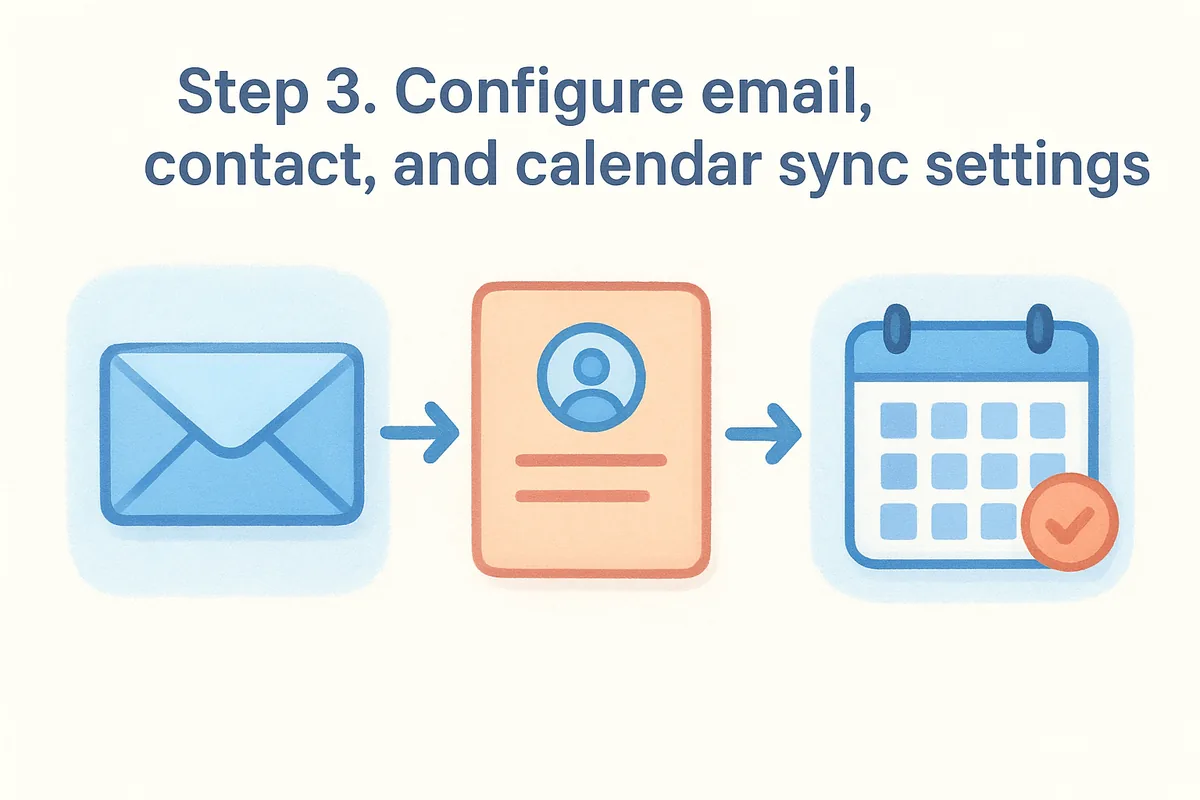
Step 3. Configure email, contact, and calendar sync settings
Getting connected is only half the job. Once Outlook shows as linked, you still need to decide exactly what syncs, how often, and to whom. Skipping this step is how teams end up with duplicate contacts or a calendar full of personal appointments nobody wanted logged. Take five minutes here to set things up right, because loose sync settings cause most of the cleanup headaches people blame on the CRM itself later.
Set your email sync scope
First, decide whether every email gets logged or only messages tied to existing contacts. Most reps prefer the second option, since it keeps the timeline focused on real prospects instead of newsletters and internal chatter. In Vedain, this lives under Settings > Email Integration > Sync Rules, where you can also set a sync frequency (real-time or every few minutes) and choose whether sent mail from your Outlook Sent folder gets pulled in too.
Decide how new contacts get created
Next, configure what happens when someone new emails you. You generally have three choices:
- •Auto-create every new sender as a contact
- •Prompt before creating, so you approve each new record
- •Ignore unknown senders entirely, syncing only existing contacts
For lead-heavy inboxes, auto-create saves time. For support-style inboxes, prompting avoids clutter.
Sync settings are where you decide if your CRM stays clean or turns into a dumping ground for every email that touches your inbox.
Turn on calendar sync last
Once email rules are set, enable calendar sync so meetings booked through Outlook attach automatically to the matching deal or contact. Choose whether this applies to all meetings or only ones with an external attendee, since internal team standups rarely belong on a deal record. This is also the moment to confirm how to integrate CRM with Outlook calendar events specifically, not just email, since some platforms treat the two as separate toggles buried in different menus.
Step 4. Test the integration and track your first emails
Before you trust the sync with real deals, run a quick test to confirm everything moves the way it should. Send yourself a test email from an address that's already saved as a contact in your CRM, then check whether it shows up on that contact's timeline within a minute or two. A clean test now saves you a confusing support call later, once actual prospects are involved.
Run a controlled test first
Open a private or test contact record and try this sequence:
- Send an email from Outlook to that contact.
- Reply from the contact's address (or a second inbox you control) to simulate an incoming message.
- Book a short calendar event with that contact as an attendee.
- Check the CRM record for all three: the outbound email, the inbound reply, and the meeting.
If any piece is missing, go back to your sync rules from Step 3 before rolling this out to the rest of the team.
Don't hand this integration to your whole sales team until you've watched one test email travel the full loop yourself.
Watch for the common failure points
Most sync issues trace back to one of a few things: the Outlook connection silently expired, the sync scope excludes new contacts, or calendar sync is toggled off separately from email sync. Vedain CRM flags a disconnected account with a visible warning in Settings, which is worth checking first if emails suddenly stop appearing.
Track your first real emails
Once the test passes, start using your actual inbox and pay attention to the first few days. Confirm that new leads generate contact records the way you configured, that sent replies attach to the right deal, and that your team's pipeline reports now reflect real email activity instead of manual updates. This is also the point where you'll notice whether how to integrate CRM with Outlook correctly matters for reporting accuracy, since a shaky sync quietly undercounts touchpoints on every deal it touches.
Getting the most from a connected inbox
Once Outlook and your CRM are actually talking to each other, the payoff shows up fast. Reps stop losing time on copy-paste logging, managers get a pipeline that reflects real conversations instead of whatever someone remembered to type in, and new leads land in the right hands without sitting unnoticed in a personal inbox. Learning how to integrate CRM with Outlook isn't a one-time IT project either; revisit your sync rules every few months as your team grows, since what worked for five reps often needs adjusting at fifty.
Quietly, this connection becomes the backbone of your sales process rather than a bolt-on feature nobody trusts. If you're still weighing which CRM makes this setup painless instead of a weekend project, Vedain CRM includes native two-way Outlook sync at every plan with no upgrade required. See how Vedain CRM connects to Outlook and get it running in under five minutes.
Related reading
Frequently Asked Questions
Is Outlook CRM integration free or does it cost money?
Most CRM platforms offer Outlook integration as a standard feature included in their base plans at no additional cost. HubSpot's free CRM tier includes Outlook sync, while Salesforce charges $165/user/month for its Professional plan with full Outlook integration, and Zoho CRM starts at $14/user/month with Outlook functionality included. Pipedrive ($14-99/user/month) and Freshsales ($15-99/user/month) also bundle Outlook integration without extra fees, making it an accessible feature across most enterprise and mid-market CRMs.
What are the best CRM alternatives to Outlook integration besides Salesforce?
HubSpot, Zoho CRM, Pipedrive, Freshsales, and Vedain all offer robust Outlook integration with different strengths. HubSpot excels in ease of use and free tier availability, Zoho CRM provides the most affordable pricing ($14-35/user/month), Pipedrive focuses on sales pipeline management, Freshsales emphasizes AI-powered features, and Vedain offers specialized solutions for specific industries. Your choice depends on budget, team size, and required functionality, with HubSpot and Zoho leading for small businesses and Salesforce dominating enterprise deployments.
Can I sync my Outlook calendar with CRM automatically?
Yes, most modern CRMs automatically sync Outlook calendar data with their platforms, creating a unified schedule view. HubSpot, Salesforce, Zoho CRM, and Pipedrive all support two-way calendar synchronization that automatically logs meetings and updates contact records without manual entry. This automation helps sales teams track customer interactions and prevents scheduling conflicts, though some advanced features like AI-powered scheduling suggestions may require premium tiers (such as Salesforce's Einstein or HubSpot's higher-tier plans).
How do I automatically log Outlook emails in my CRM?
You can enable automatic email logging through your CRM's Outlook add-in, which captures incoming and outgoing emails and stores them in contact records automatically. HubSpot, Salesforce, Zoho, Pipedrive, and Freshsales all offer browser extensions or Outlook plugins that log emails with a single click or completely automatic logging based on your settings. The setup typically involves installing the CRM add-in from the Outlook App Store, granting permissions, and configuring which email folders and contacts should be tracked automatically.
Which CRM has the best Outlook integration for sales teams?
Salesforce and HubSpot are generally considered to have the most comprehensive Outlook integrations for sales teams, with Salesforce offering deeper enterprise features and HubSpot providing superior user-friendliness. Pipedrive excels specifically for pipeline-focused sales workflows with its Outlook sync, while Freshsales distinguishes itself with AI-powered email insights and conversation tracking. For mid-market teams prioritizing affordability, Zoho CRM ($14/user/month) delivers excellent Outlook integration with strong email automation and contact sync capabilities.
What happens to my data if I disconnect Outlook from CRM?
Disconnecting Outlook from your CRM stops future syncing but preserves all existing data that was already imported into the system. HubSpot, Salesforce, Zoho CRM, Pipedrive, Freshsales, and Vedain all maintain historical records in your CRM database even after disconnection—your contacts, emails, and calendar entries remain intact. However, future Outlook changes won't be reflected in the CRM unless you re-establish the connection, so it's important to plan your integration carefully before disconnecting, especially if you rely on real-time sync.